 Chronicle
Get started
Chronicle documentation
Chronicle turns recordings of your screen and system events into agent harnesses. A harness holds context files, workflows, and a knowledge graph of your work.
Quickstart
Load a sample workday and open the app. Chronicle records nothing.
Build a harness
Combine context files, workflows, and a graph for one line of work.
Connect an agent
Give Claude, Cursor, ChatGPT, and other clients access over MCP.
Chronicle has three levels, from general to specific:
| Level | What it is | Example |
|---|---|---|
| Harness | Everything an agent needs for a whole line of work | Recruiting |
| Context file | General guidance for one kind of session, like an agent file | Researching job companies |
| Workflow | A short procedure for one specific job, like a skill | Customizing resume bullets to keep their formatting and length |
The screens and GIFs on this page show a synthetic sample workday and no real screen data. The GIFs omit the time spent waiting on a model.
Quickstart
Quickstart loads a synthetic workday, so Chronicle records nothing. You need uv.
- Install Chronicle.
uv tool install --python 3.12 "chronicle-context[graph]" - Load the sample workday.
chronicle demo - Start the app.
chronicle serve - Open
http://127.0.0.1:3030.
The app opens on Knowledge, and the list of recordings shows Sample workday.
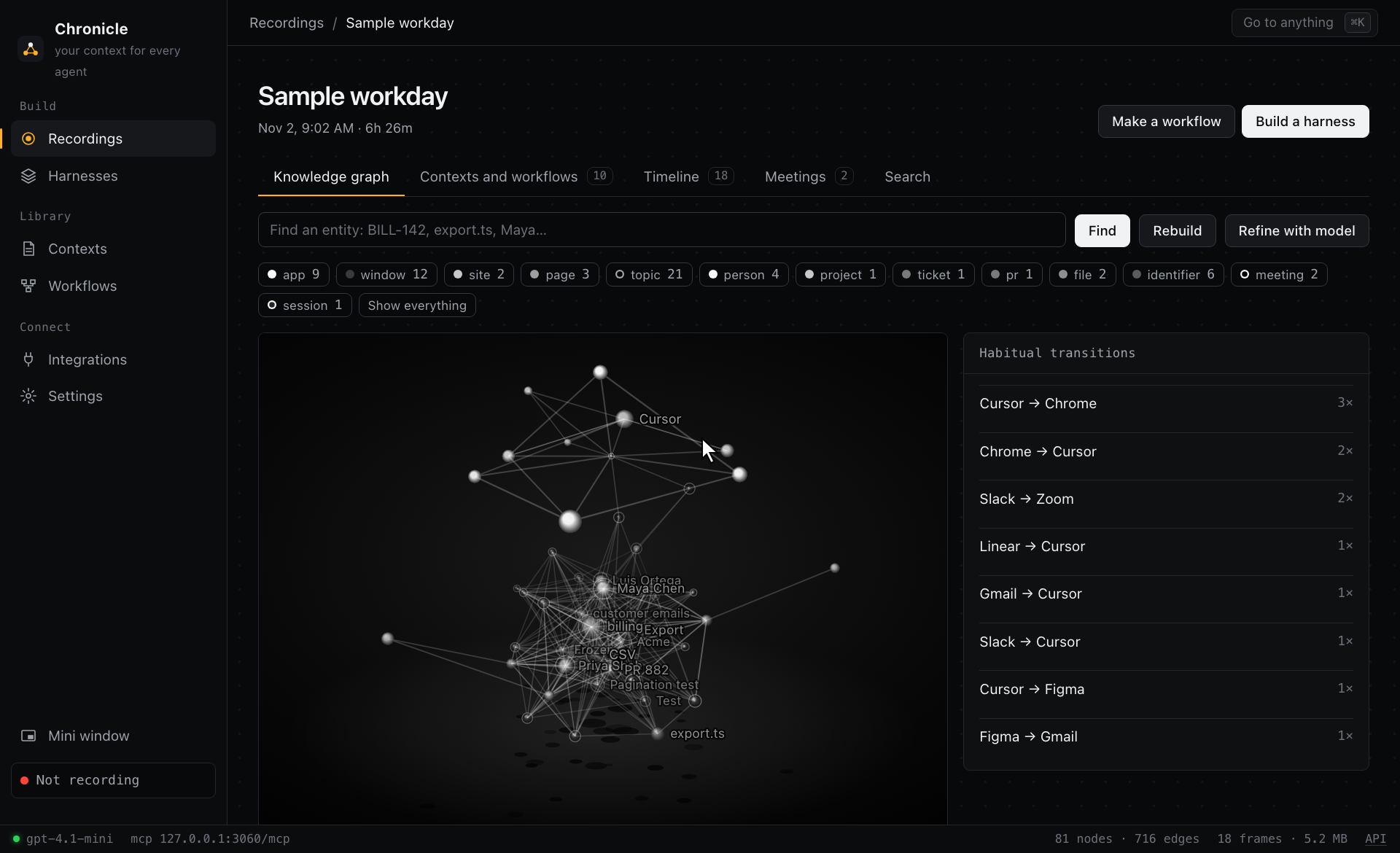
To print what an agent receives, run this command in another terminal:
chronicle context "finish the Acme export"# Computer context (Chronicle)
Task: finish the Acme export
Window: the most recent 2h of history.
## What you were doing
- 14:55-15:31 meeting Acme weekly · Jordan Hale (36m)
- 15:34-16:24 writing customer emails · export spec (50m)
- 16:28-16:48 coding export.ts · asking Priya (20m)
## On screen now
- Chrome · Checks · PR 882 (frame 18)
- URL: https://github.com/northwind/billing/actionsNext, set up a model so that Chronicle can write context files and workflows. Then build a harness.
Your first recording
Check what this computer can capture:
chronicle doctorplatform: darwin
[ok] front window: Cursor
[ok] idle time: 0.23
[ok] clipboard: readable
[ok] screenshot: 451 KB
[ok] OCR: tesseract
[!!] accessibility: grant Accessibility to the app that runs ChronicleOn macOS, Chronicle needs Screen Recording and Accessibility. The permission belongs to the app that runs Chronicle. That app is your terminal for chronicle record and chronicle serve. If an agent starts the recording, that app is the host, such as Claude Desktop or Cursor. Each browser also shows one Automation prompt before Chronicle can read its URLs.
- Open System Settings › Privacy & Security.
- Add the app that runs Chronicle to Screen & System Audio Recording and Accessibility.
- Quit that app completely, then reopen it. Closing its windows isn't enough.
- On Knowledge, choose a duration.
- Type what you're about to do.
- Press Start recording. The panel shows live storage, frames, system events, pages, apps, and graph nodes.
- Press Stop and build graph, or let the timer finish.
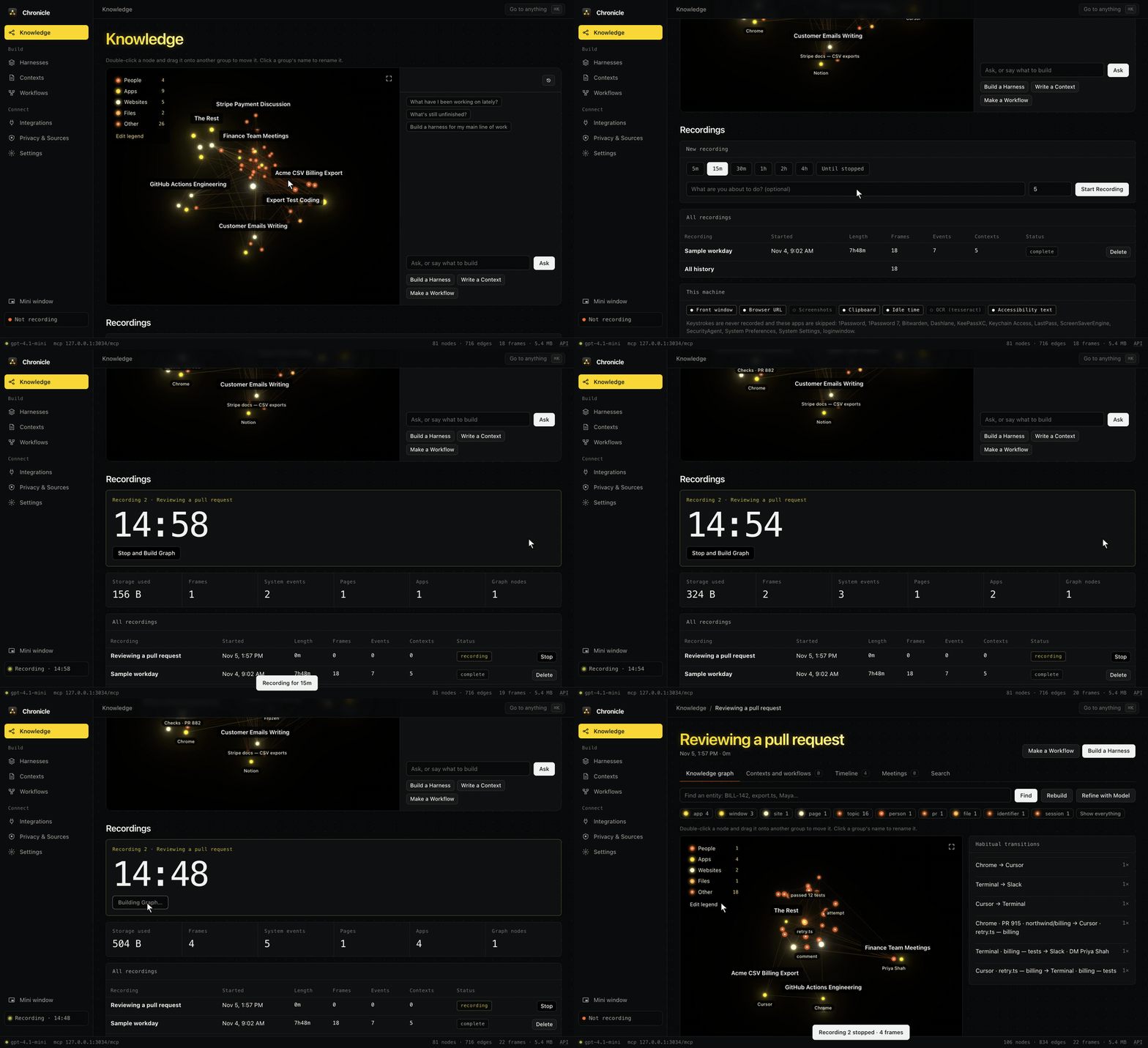
To record from the terminal, run these commands. An agent can also record with start_recording.
chronicle record 30m --label "file an expense report"
chronicle stop
chronicle sessions
A duration is between 10 seconds and 7 days, written as 90s, 15m, or 1h30m. Press Ctrl-C to stop early. chronicle record captures in its own terminal. --detach only starts the session, so a running chronicle serve must do the capturing.
The mini window in the sidebar keeps a record button and a timer above your other windows. It needs a browser that supports Document Picture-in-Picture.
Ontology
Knowledge
Knowledge is the app's first page. The top of the page shows the knowledge graph of all your history, with a chat beside it. The chat answers from the graph and its evidence, cites frames, and highlights the nodes it names. Without a model, the chat answers from search.
The chat can also start work. Type a request such as "build a harness for my billing work". With a model set up, the chat proposes a harness, context file, or workflow, and names its sources. Chronicle builds nothing until you press the button on the proposal, so text captured in a recording can't start a build. The buttons under the chat open the full forms.
Below the chat, the page shows the controls for a new recording and the list of your recordings.
Groups
Related nodes form groups, and each group's name stays on screen when it fits. A model names the groups when one is set up. Otherwise, Chronicle uses automatic names. Press a name to rename it. To move a node, double-click it, keep holding, and drag it onto another group, or use the node's panel. Names and moves apply to every graph and stay after a rebuild.
Change the legend
Every graph has a legend. The legend starts with People, Apps, Websites, Files, and Other. Press a row to highlight that category. Edit legend has these controls:
- Rename, add, or remove a category.
- Choose a color from the palette or a color wheel.
- Choose which kinds of node belong to each category.
To change one node, select it, then rename it or move it to another category. These changes apply to every graph in the app and to what agents read over MCP. They stay after a rebuild.
Expand a graph
The expand button at the top right of a graph fills the window, with the chat on the right. Scroll to zoom. To go back, press Esc or the X at the top of the chat.
Chat history
Chronicle saves a chat when you send it, and your latest chat returns after a reload. History reopens or deletes an earlier chat, and New chat starts another. Each recording keeps its own history. Chronicle stores chats only in your Chronicle folder.
Recordings
A recording is the source of everything else. Every 5 seconds by default, Chronicle samples the front app, its window, and the browser URL (macOS). When something changes, and at least every 30 seconds, Chronicle also takes a screenshot and reads screen text from the Accessibility tree or OCR. Without Screen Recording, Chronicle takes no screenshots. Chronicle logs these system events: app_switch, window_focus, url_change, clipboard, idle_start, idle_end, session_start, and session_stop.
Chronicle never records keystrokes and skips password managers and System Settings. Chronicle redacts emails, API keys, JWTs, and card numbers before it writes anything.
When a recording ends, Chronicle builds its graph. If a model is set up, the model then refines the graph and writes context files and workflows in the background. If no model is set up, Chronicle stops after the graph.
A recording has five tabs:
| Tab | What's there |
|---|---|
| Knowledge graph | The graph, a node inspector, habitual app switches, and a chat about this recording |
| Contexts and workflows | What Chronicle generated from this recording, and buttons to make more |
| Timeline | Activity by app, frames with screenshots, system events, tasks, and URLs |
| Meetings | Transcripts, decisions, and action items that a speech-to-text tool sends to POST /add |
| Search | Graph nodes, screen text, transcripts, events, URLs, and context files |
All history, at the bottom of the recordings list, combines every recording. Older recordings count less.
Knowledge graph
Each recording gets its own graph, with nodes for:
- Apps, windows, sites, pages, and search queries
- Topics, files, tickets, PRs, and code identifiers
- People, projects, customers, meetings, and tasks
Every node and edge records its time and its source frames, so an agent can cite its evidence.
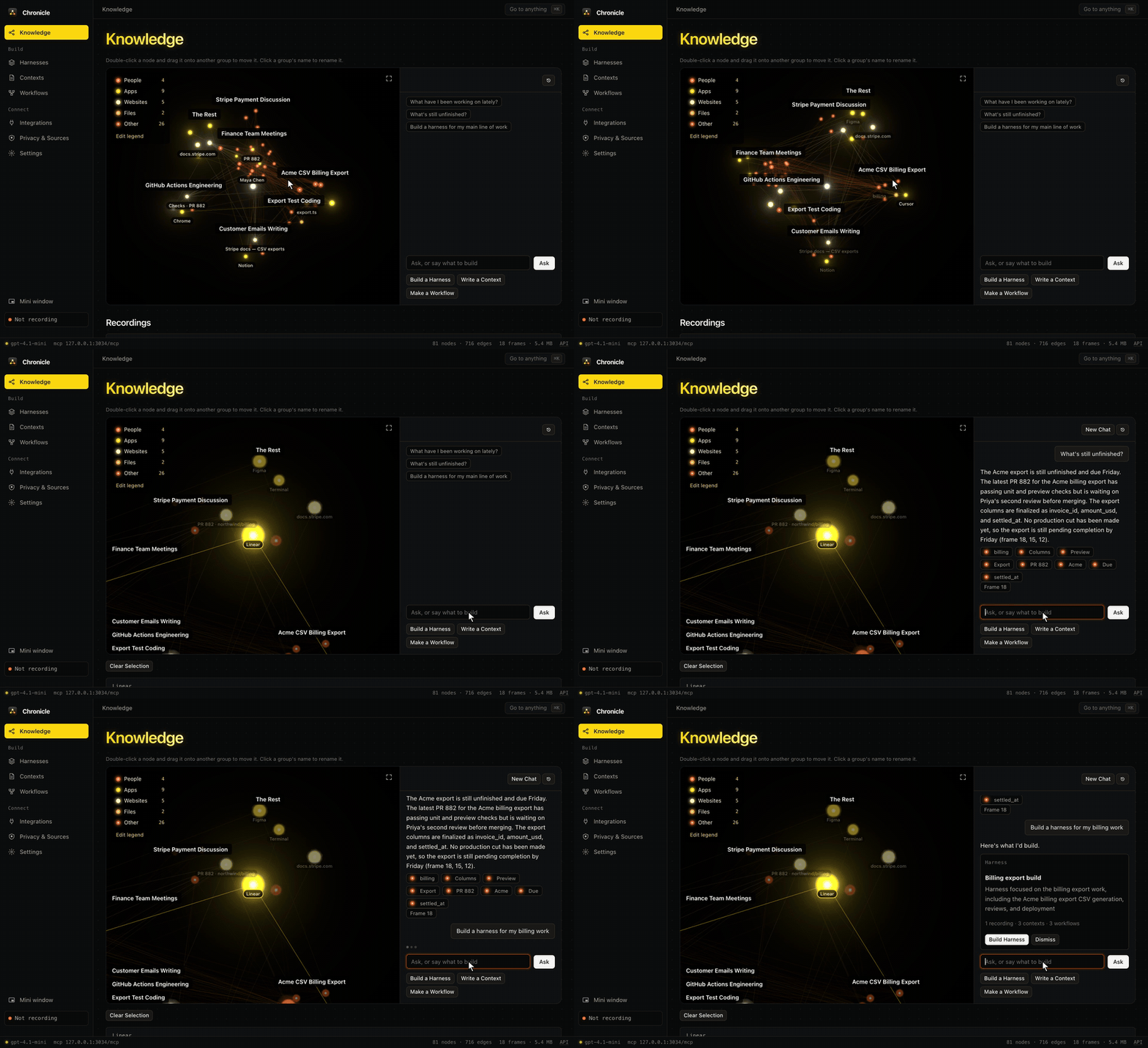
Drag to rotate, and pinch to zoom. Select a node to list what you did there, with its system events and frames. Windows, identifiers, and other low-level kinds stay hidden until you choose Show everything or filter by kind. With Refine with model, a model names the real work, merges duplicates, and adds typed relations.
Ask about a recording
The chat beneath a recording's graph answers from that recording only. The answer cites frames that you can open. Without a model, the chat falls back to a search of the recording.
Graph commands
chronicle graph show --session 1
chronicle graph find acme
chronicle graph node pr:882
chronicle graph tasks --session 1
chronicle graph tune --session 1
chronicle ask "Where did we land on the Acme export columns?"
chronicle search invoice_id
graph tune needs a model, and fails with no model is set up without one. Without a model, ask returns search results instead of a written answer.
Context files
A context file is general guidance for one kind of session, like an agent file. A context file says where things stand, how to work, and what to reference. A procedure belongs in a workflow instead. Use one context file alone for a small session, such as backtesting or making a presentation. Combine more than one in a harness.
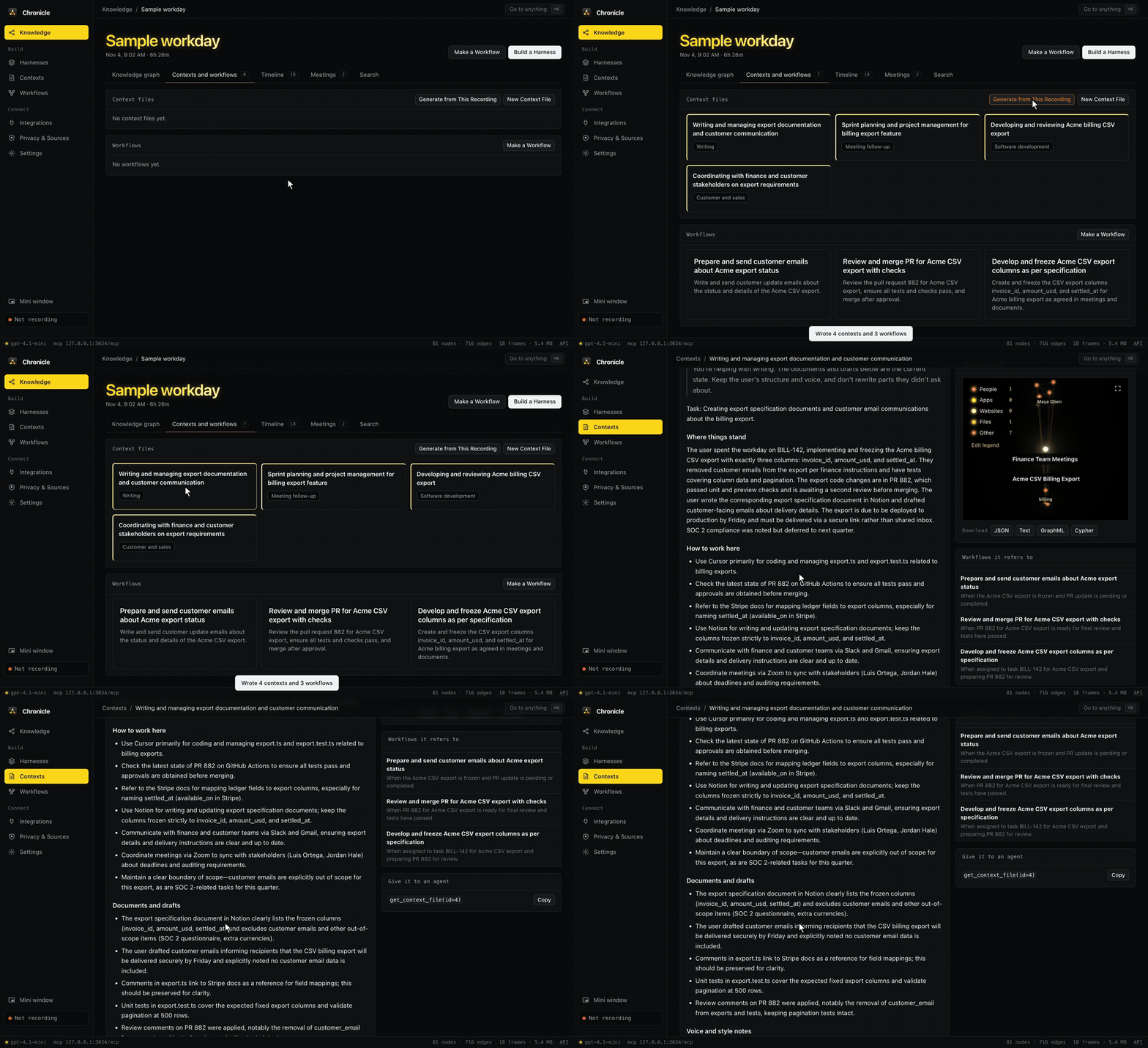
Generate context files
If a model is set up, it writes context files when a recording ends. For older recordings, open Contexts and workflows and press Generate from this recording. The model reads everything recorded and names up to four files for the sessions it finds, such as "Researching job companies". Without a model, Chronicle builds a General file and up to two other files from the evidence, based on the recording's keywords.
To write a file for specific work, press New on the Contexts page or New context file on a recording. With a model, the form suggests complete options from your knowledge graph. Press an option to fill in every field, or type a name and press Fill in the rest from what I've typed. Without a model, the form suggests only names and recordings. The form has these fields:
- Name and Description of the work: what the session is and what an agent must know before it starts.
- Recordings to look at: one or more, combined into one file.
- Earlier contexts to look at: if a recording disagrees with an earlier context, the file follows the recording.
- Workflows to use: the file names each workflow and says when to use it, without a copy of its steps.
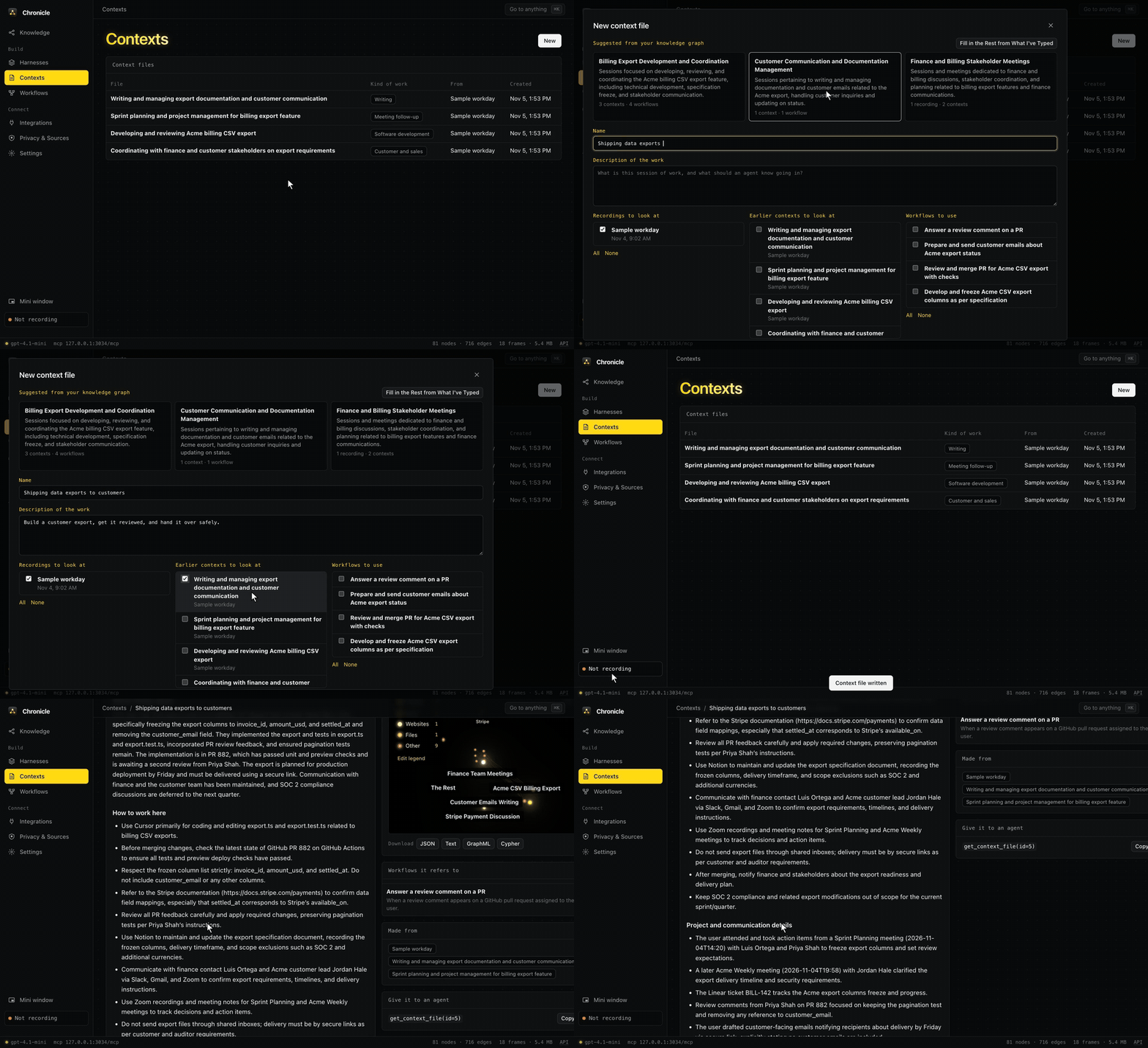
Choose at least one source. Without a source, Chronicle refuses the request. Without a model, or if the model fails, Chronicle builds the file directly from the sources.
Sections of a context file
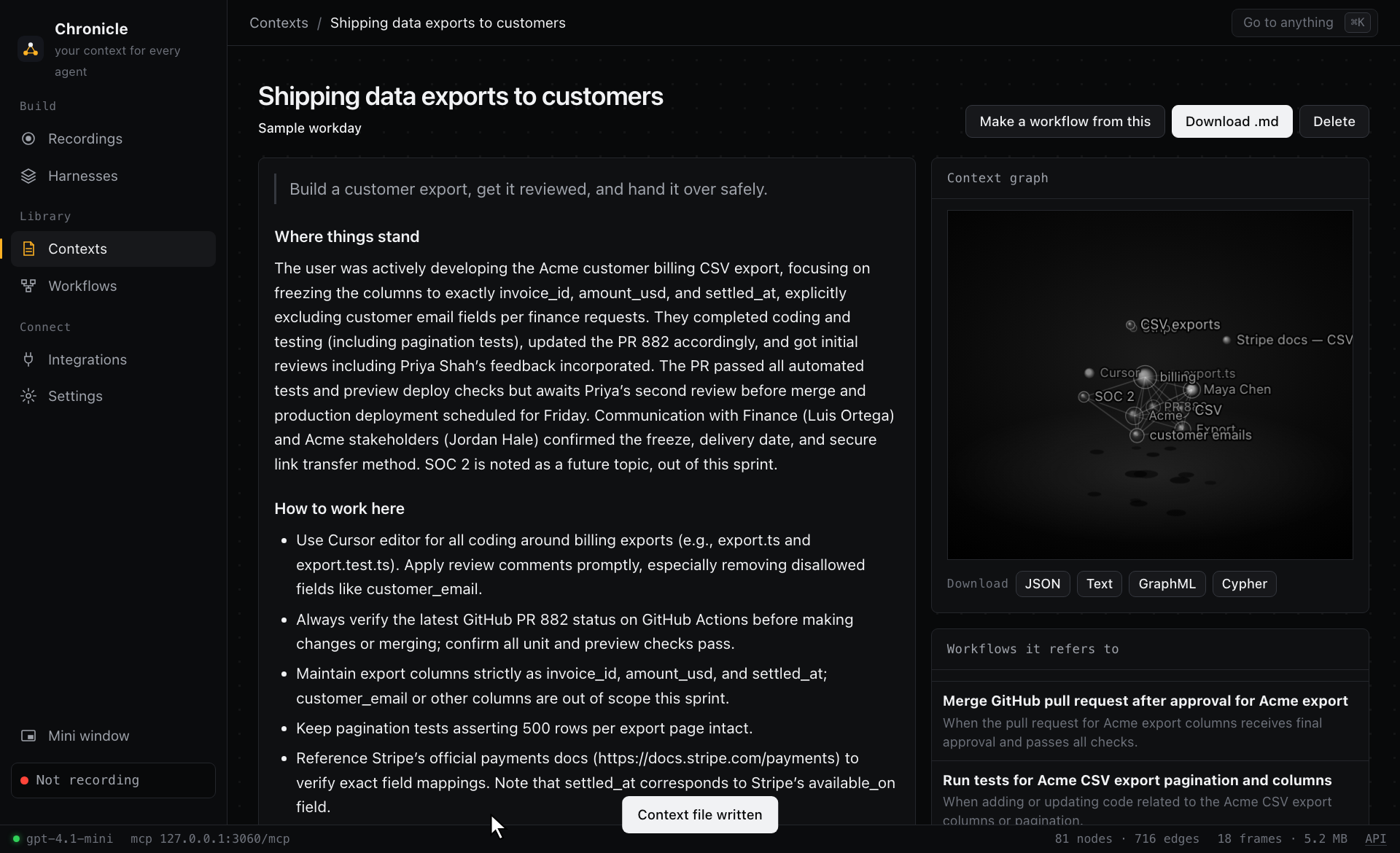
A model-written file has these sections. The model omits a section if the evidence doesn't support it.
- Where things stand: what you were doing and where you left off.
- How to work here: instructions from what you did, such as which tools to use and what to check first.
- Sections for that kind of work: tickets and PRs for coding, or sources read for research.
- Reference: exact files, URLs, identifiers, and people.
- Open threads: what's unfinished.
Each file also has a small graph of the nodes it uses, and a list of the workflows made from it or its recording. Download .md includes both, so one file works as a single upload.
Workflows
A workflow is a short, action-oriented procedure for one specific job, like a skill. A workflow has these parts:
- A trigger
- Inputs, written as
{placeholders} - Three to seven steps
- What to confirm first
- A small graph
Chronicle marks a step Confirm first if it sends, submits, publishes, pays, merges, or deletes.
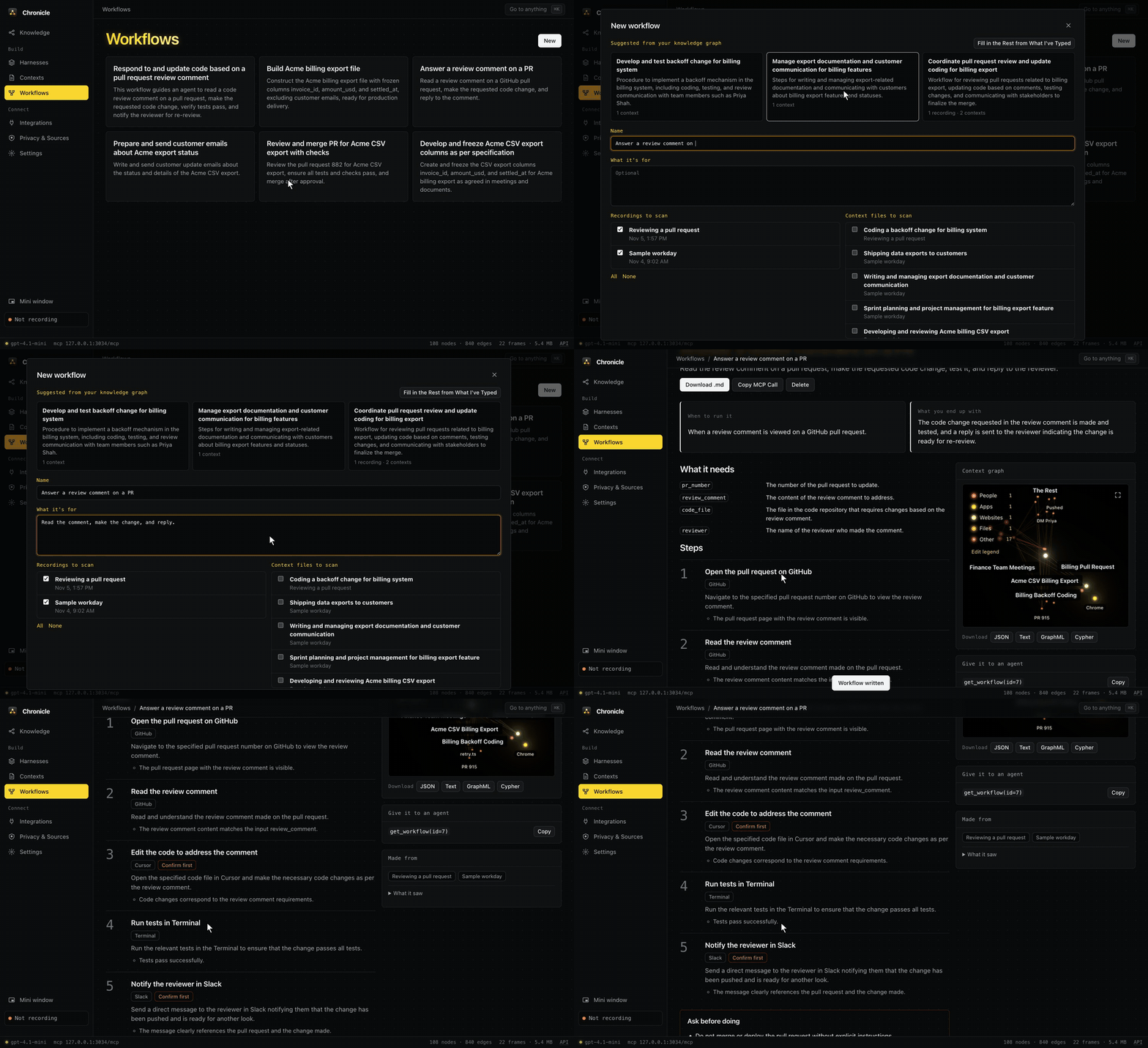
Press New on the Workflows page, or Make a workflow on a recording or context file. The form suggests options in the same way as the context file form, and has these fields:
- Name and What it's for request one specific workflow. If both are blank, the model finds up to five workflows in your sources.
- Recordings to scan and Context files to scan set what it reads, so one workflow can use more than one recording.
A workflow must cite frames from your sources, and Chronicle rejects a workflow that cites other frames. If the model can't find the work in your sources, the app tells you and writes nothing. Workflows need a model that supports tool calls.
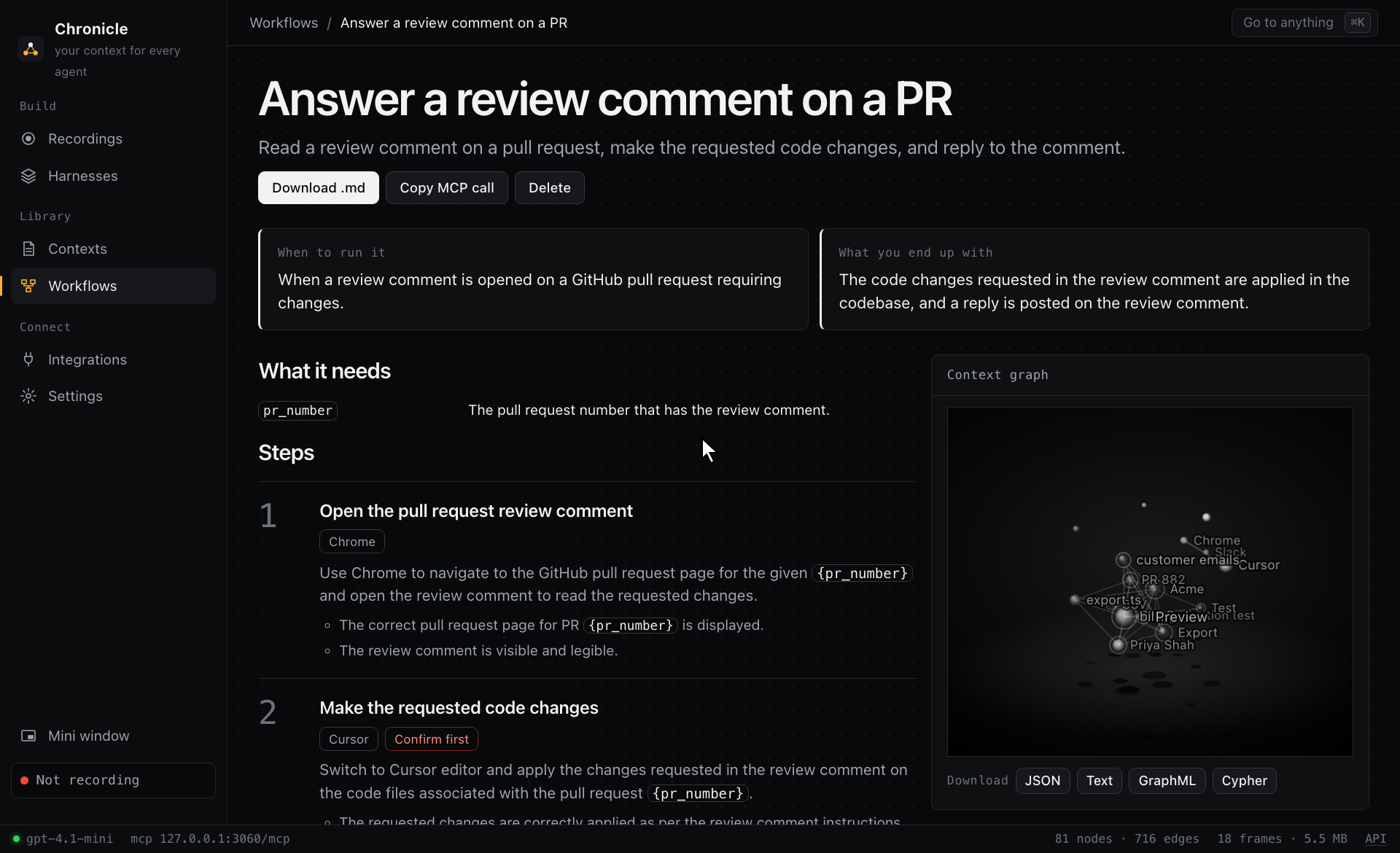
Downloads use the same frontmatter as skills (name and description), so you can copy a file directly into a skills folder.
Harnesses
A harness is everything an agent needs for a whole line of work. A harness holds:
AGENTS.md: what the harness is for, which file to load when, and rules that hold everywhere.contexts/: context files.workflows/: workflows.graph/: a graph engine that merges the recordings you choose, including their system events.
Build one
On Harnesses, press New harness, or press Build a harness on a recording. The wizard has five steps:
- Purpose: enter a general name and a detailed description, or choose an option under the name. With a model, the options come from the tasks and topics in your knowledge graph. Then choose which AI tools can use the harness. Tools found on your computer start ticked.
Build writes to each ticked tool's config file and keeps a backup. A connected tool can read all your harnesses, not only this one. To reverse the change, disconnect the tool on Integrations.
- Recordings: choose what its graph is built from.
- Contexts: choose existing files. With a model, Chronicle marks the files that fit your description as Suggested. A model can write files here for a recording that has none.
- Workflows: choose existing workflows, and list any to write. The model proposes what's missing, and you can edit that list.
- Review: check the file tree, then build.
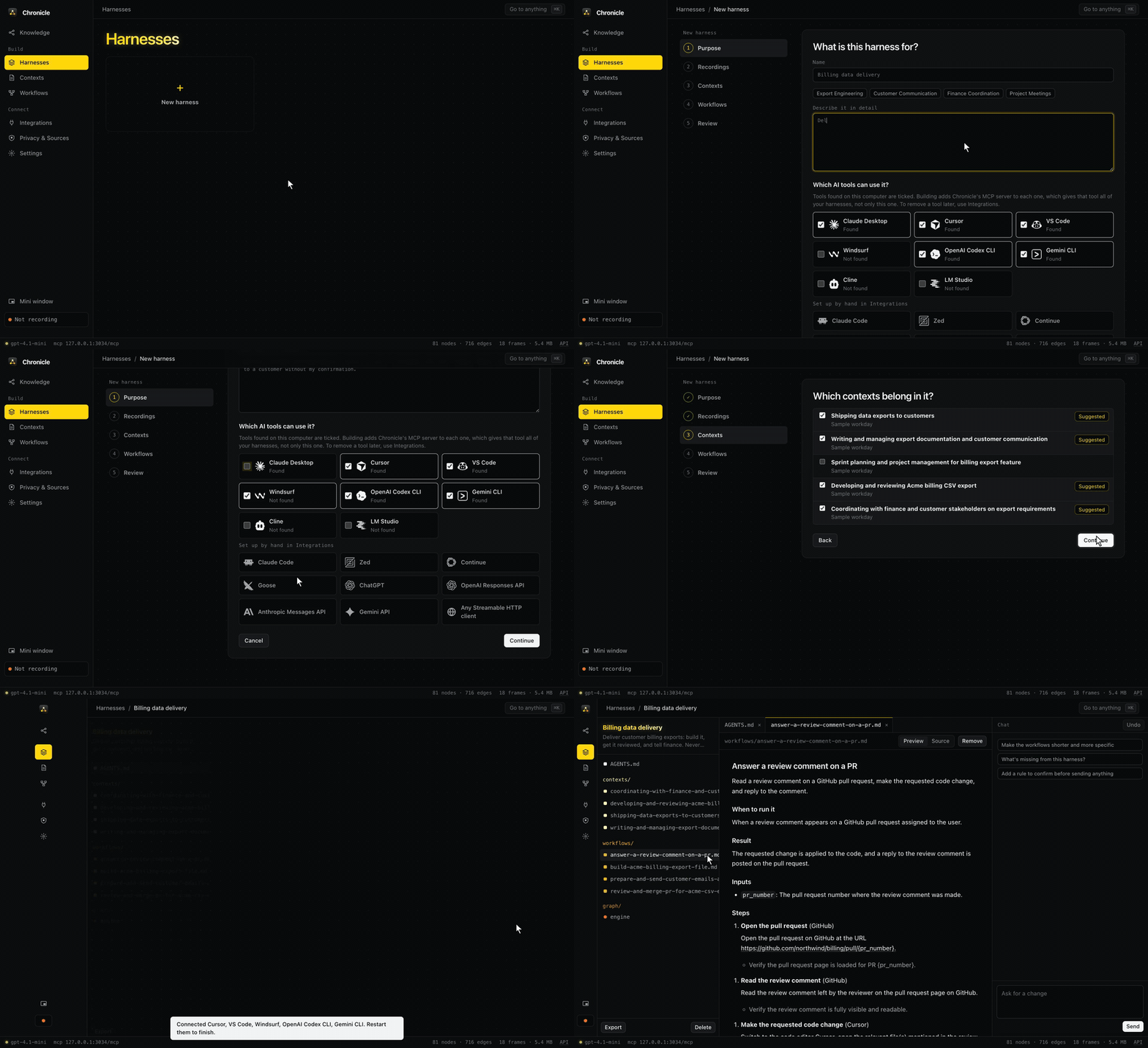
Chronicle copies files into the harness, so an edit there never changes the originals. If the recordings can't support a workflow you requested, the app names that workflow and builds the rest.
Edit one
A harness opens in an editor with three panes:
- Left: the file tree. Use + to add a file, and Export to download.
- Middle: tabs for open files, with Preview and Source. Save with
⌘S. - Right: a chat that reads every file. The chat can edit, add, or remove files, or write a new workflow from the recordings. Each change appears as a chip that you can open.
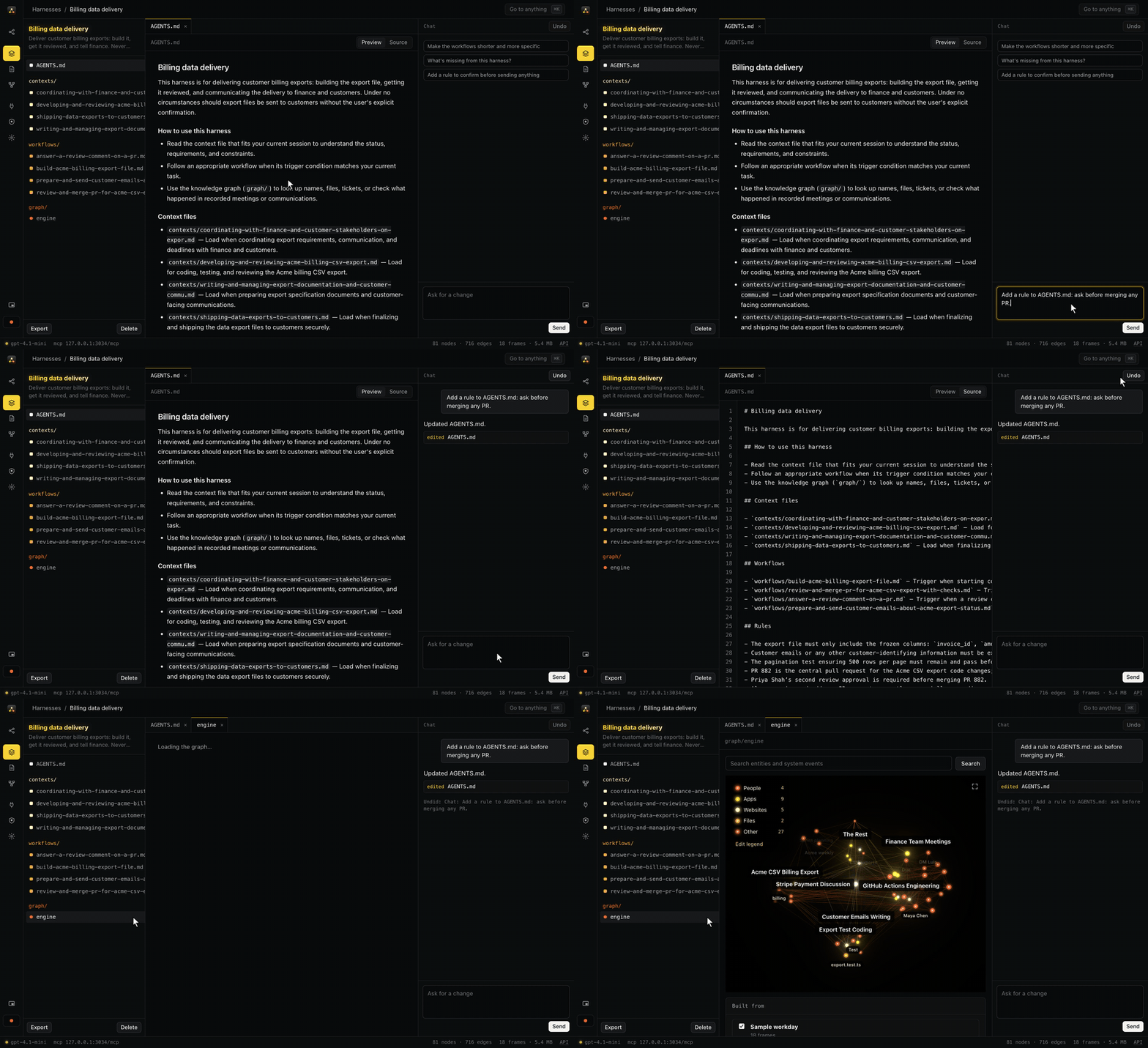
Undo reverses the last change from the chat or from a save. Review each chat change, because a model can soften or misread a request. A chat edit fails if the model's text doesn't match the file. The chat then reports the failure and changes nothing. Chat edits need a model that supports tool calls. Source works without a model.
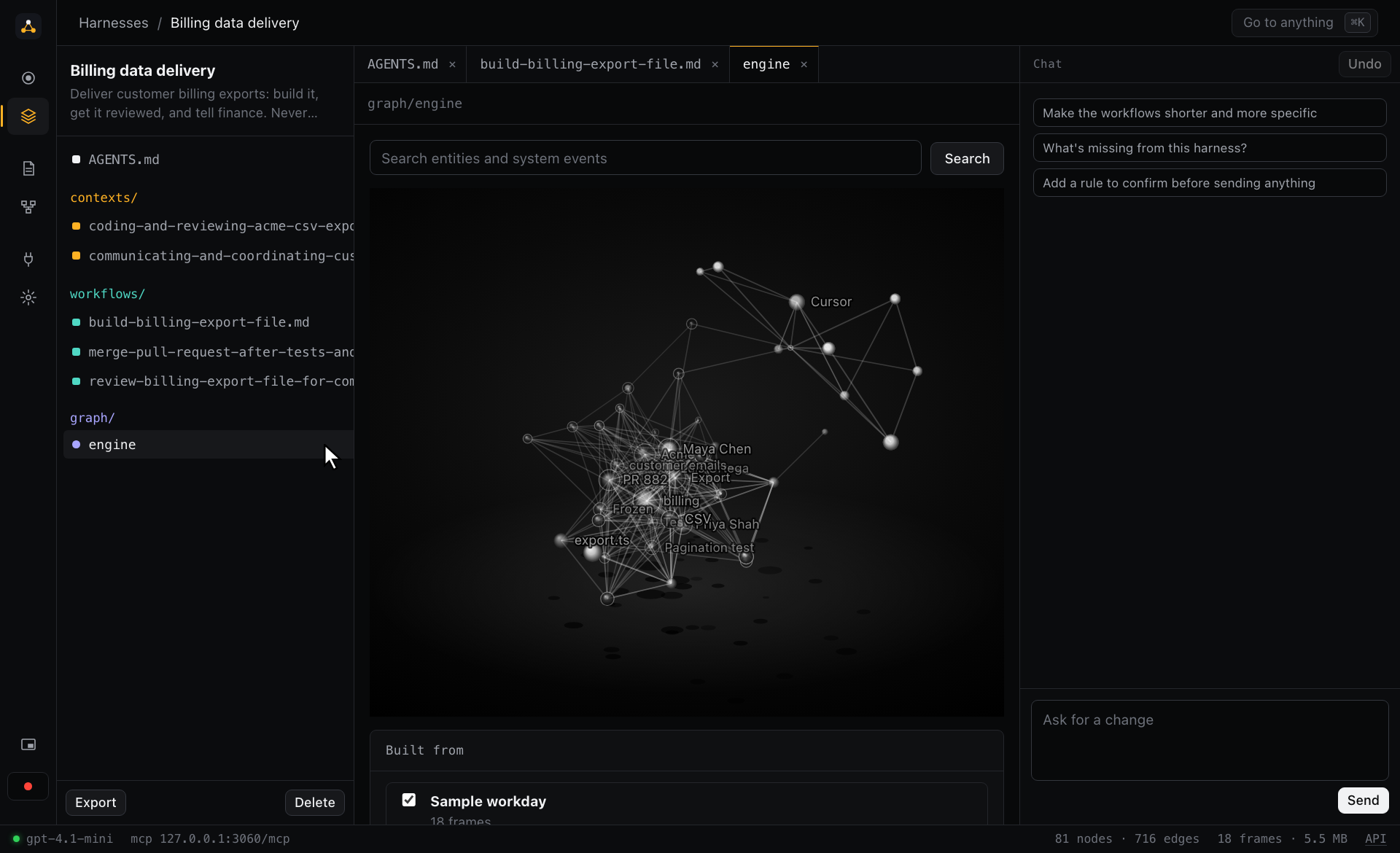
The graph engine
graph/engine in the file tree shows the merged graph. From there, you can search its nodes and system events, and change its recordings.
Guides
Privacy & Sources
Privacy & Sources sets what Chronicle reads besides your recordings. Every source starts off, except Screen, which runs only during a recording. A source that you turn on syncs every 10 minutes. Its items join your all-history graph and the Knowledge chat. Harnesses and recordings keep their own graphs.
Forget deletes everything a source read, and has no undo.
Retention also applies to source items. At the default of 30 days, Chronicle keeps only items from the last 30 days, even if the source holds more.
| Group | Sources | How it reads |
|---|---|---|
| AI tools | Claude Code, Codex, Cursor, Gemini CLI | Local logs |
| AI tools | ChatGPT, Claude, Gemini history | Import your data export |
| Apple Mail | Local mail database | |
| Windows Mail | Import .eml, .mbox, or a .zip of them | |
| Calendar | Apple Calendar | Local calendar database |
| Messages | iMessage, WhatsApp | Local databases, only the chats you pick |
| Files | Folders | Folders you add |
| Browser | Browser history | Safari, Chrome, Arc, Brave, Edge, and Vivaldi history |
| Cloud | Outlook mail and calendar, Google Calendar, Slack, Notion | Read-only sign-in |
Local Mac sources need Full Disk Access for the app that runs Chronicle. Set Full Disk Access in System Settings › Privacy & Security, then quit and reopen that app. iMessage also uses Contacts to show names.
Connect a cloud source
Each cloud source needs an OAuth client that you register with the provider. Set these variables before you start Chronicle. Without them, the source shows as unavailable.
| Provider | Variables |
|---|---|
| Google Calendar | CHRONICLE_GOOGLE_CLIENT_ID, CHRONICLE_GOOGLE_CLIENT_SECRET |
| Outlook | CHRONICLE_MICROSOFT_CLIENT_ID |
| Slack | CHRONICLE_SLACK_CLIENT_ID, CHRONICLE_SLACK_CLIENT_SECRET, CHRONICLE_OAUTH_HTTPS_REDIRECT |
| Notion | CHRONICLE_NOTION_CLIENT_ID, CHRONICLE_NOTION_CLIENT_SECRET, CHRONICLE_OAUTH_HTTPS_REDIRECT |
Slack and Notion only accept HTTPS redirects, so CHRONICLE_OAUTH_HTTPS_REDIRECT must be an HTTPS page that you control. That page must forward to /oauth/callback on Chronicle.
Set up a model
A model that you choose writes contexts, workflows, and harnesses.
- Open Settings › Model.
- Open a provider.
- Add its key.
- Press Test. Chronicle sends one small request.
- Press Use.
Each provider keeps its own key and model, so you can switch at any time.
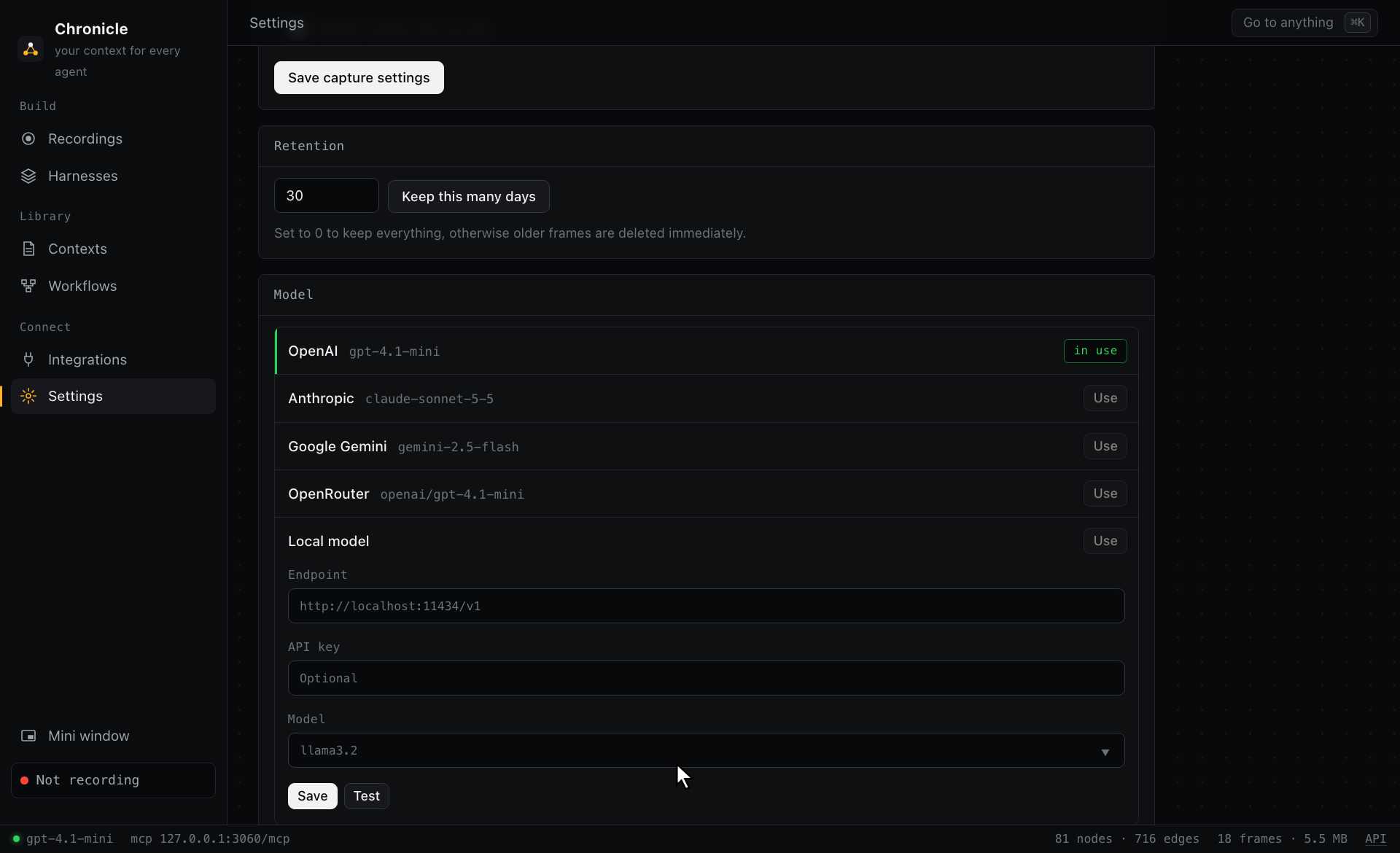
| Provider | Default model | Key from the environment |
|---|---|---|
| OpenAI | gpt-4.1-mini | OPENAI_API_KEY |
| Anthropic | claude-sonnet-5-5 | ANTHROPIC_API_KEY |
| Google Gemini | gemini-2.5-flash | GEMINI_API_KEY |
| OpenRouter | openai/gpt-4.1-mini | OPENROUTER_API_KEY |
| Local model | You choose | Not needed |
A key can also be in a .env file in ~/.chronicle or the current directory. Your choice in Settings overrides CHRONICLE_LLM. The exception is CHRONICLE_LLM=off, which turns models off whatever Settings says.
Use a local model
Chronicle works with any OpenAI-compatible endpoint, including Ollama and LM Studio. These steps use Ollama, which must be running.
- Pull a model.
ollama pull llama3.2 - Open Local model in Settings. The endpoint defaults to
http://localhost:11434/v1, and your pulled models appear under Model. - Choose a model.
- Press Test.
- Press Use.
Chat about a recording works with any model. Workflows, harness chat, and context file names use tool calls, so choose a model that supports them. A model without tool support gets the tools described in the prompt instead, and small models often fail at this. In our November 2026 testing, gemma3:4b answered questions well but couldn't write a valid workflow or edit a file.
Data sent to the provider
The active provider receives window titles, URLs, system events, and redacted screen text. A local model keeps this data on your computer. With no model, Chronicle runs offline. It still records, builds graphs, searches, and builds plain context files.
Connect an agent
Chronicle is an MCP server. Desktop and command-line clients start it locally. Integrations shows detected clients in yellow, and connects or disconnects them.
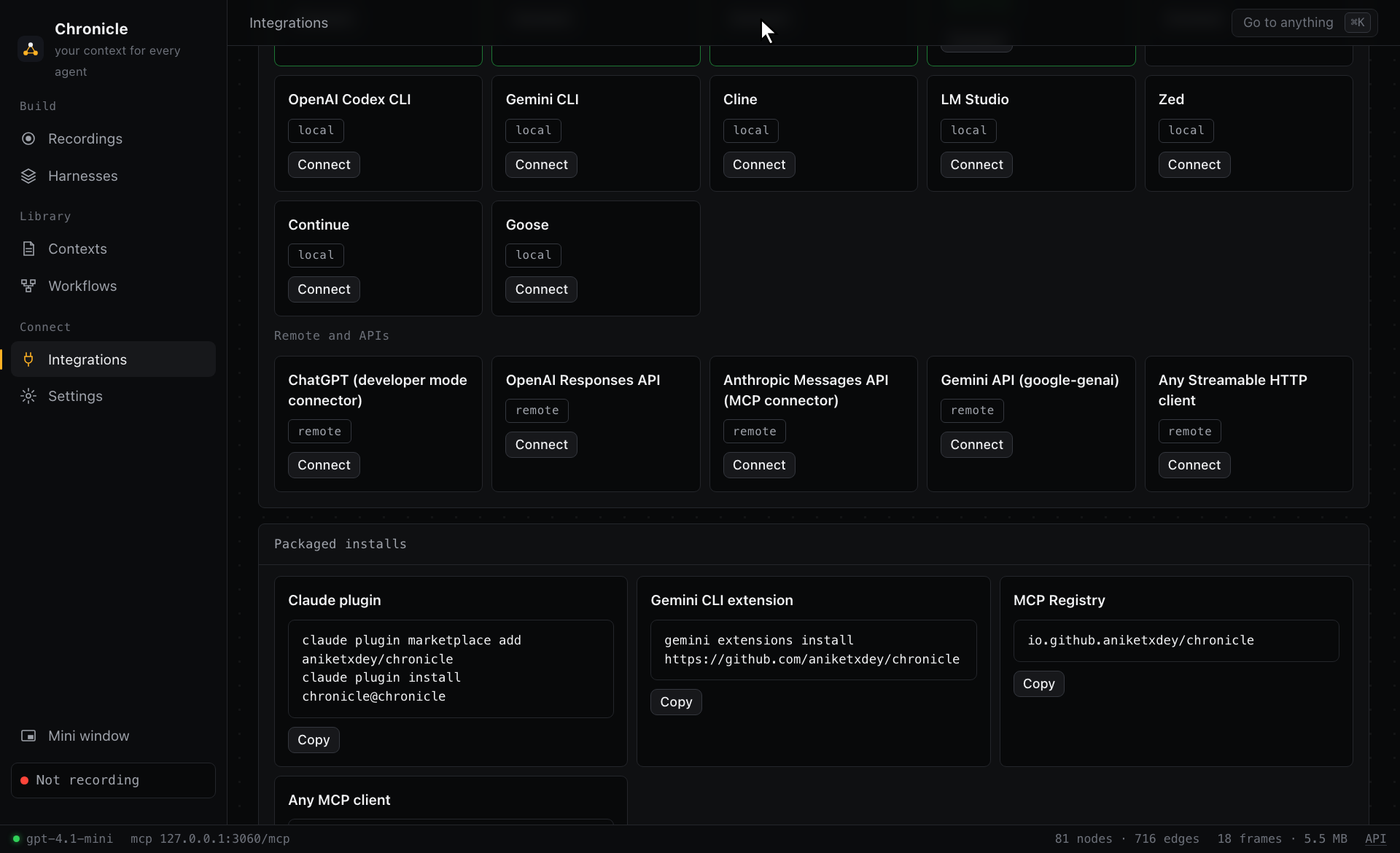
install writes the server into a client's config and keeps the old file as a backup. config prints the snippet instead. --dry-run shows the change and writes nothing. Restart the client after an install.
chronicle mcp clients
chronicle mcp install cursor --dry-run
chronicle mcp config cursor| Client | Set it up with | Config file (macOS) |
|---|---|---|
| Claude Code | chronicle mcp install claude-code | Runs claude mcp add. Check with /mcp |
| Claude Desktop | chronicle mcp install claude-desktop | ~/Library/Application Support/Claude/claude_desktop_config.json |
| Cursor | chronicle mcp install cursor | ~/.cursor/mcp.json |
| VS Code (Copilot) | chronicle mcp install vscode | ~/Library/Application Support/Code/User/mcp.json |
| Windsurf | chronicle mcp install windsurf | ~/.codeium/windsurf/mcp_config.json |
| OpenAI Codex CLI | chronicle mcp install codex | ~/.codex/config.toml |
| Gemini CLI | chronicle mcp install gemini-cli | ~/.gemini/settings.json |
| Cline | chronicle mcp install cline | VS Code's globalStorage/saoudrizwan.claude-dev/settings/cline_mcp_settings.json |
| LM Studio | chronicle mcp install lm-studio | ~/.lmstudio/mcp.json |
| Zed | chronicle mcp config zed | Add under context_servers in Zed's settings |
| Continue | chronicle mcp config continue | ~/.continue/config.yaml |
| Goose | chronicle mcp config goose | ~/.config/goose/config.yaml |
On Windows, these files are under %APPDATA% or %USERPROFILE%. On Linux, most are under ~/.config. chronicle mcp config prints the path for your computer.
Packaged installs
Packaged installs need only uv, not an existing Chronicle install.
claude plugin marketplace add aniketxdey/chronicle
claude plugin install chronicle@chronicle
gemini extensions install https://github.com/aniketxdey/chronicleA client that accepts a command can run the published package directly:
{
  "mcpServers": {
    "chronicle": {
      "command": "uvx",
      "args": ["--python", "3.12", "--from", "chronicle-context[graph]", "chronicle-context", "mcp"]
    }
  }
}
Tool order for agents
An agent calls list_harnesses first. If a harness fits, the agent uses these tools:
get_harnessreadsAGENTS.md.read_harness_fileloads the files thatAGENTS.mdnames.search_harness_graphlooks up nodes and system events.
get_context adds what's on screen now. A local server starts a recording when an agent calls start_recording. Only one Chronicle process captures at a time.
Hosted agents and APIs
Hosted agents and APIs run on another company's servers, so they need a public HTTPS URL. chronicle serve exposes MCP at /mcp. Set a token, then put the server behind a tunnel that you control.
Anyone with the URL that these commands print can read your Chronicle data.
export CHRONICLE_TOKEN=$(openssl rand -hex 16)
export CHRONICLE_PUBLIC_URL=https://YOUR-TUNNEL-HOST
chronicle serve &
cloudflared tunnel --url http://127.0.0.1:3030
echo "$CHRONICLE_PUBLIC_URL/mcp/$CHRONICLE_TOKEN"
Stop the tunnel when you finish. If the URL leaks, change the token. A client that supports headers can use /mcp with Authorization: Bearer instead. A request with no token or a wrong token gets a 401.
ChatGPT:
- Open Settings › Connectors › Advanced.
- Turn on Developer mode.
- Create a connector with the URL and no authentication.
The search and fetch tools return the format that connectors and deep research expect.
APIs: chronicle mcp config prints a starting point for each API. Provider model names and beta flags change often, so check each provider's MCP documentation.
chronicle mcp config openai-api
chronicle mcp config anthropic-api
chronicle mcp config gemini-api
chronicle mcp config http
The examples folder has longer scripts.
Use it as files
A tool without MCP can use these downloads:
| You want | Where | You get |
|---|---|---|
| A whole harness, as a folder | Editor › Export › Folder as .zip | AGENTS.md, harness.json, contexts/, workflows/, and graph/, with graphs as JSON and GraphML and system events as events.jsonl |
| A whole harness, as one upload | Editor › Export › One .md file | Every file and graph in one Markdown file |
| One context file or workflow | Its page › Download .md | The file with its graph as text |
| One graph | Its page › Download | JSON, text, GraphML, or Cypher |
Integrations › Harnesses as files lists which download fits each tool:
- ChatGPT or Claude Projects: the one Markdown file
- Cursor or Codex: the .zip, unzipped into a repository
- Neo4j: Cypher
Reference
MCP server
Two transports share one set of tools: stdio with chronicle mcp, and Streamable HTTP at POST /mcp on a running server. GET /mcp returns 405. The server supports protocol versions 2025-06-18, 2025-03-26, and 2024-11-05. To inspect the server:
npx @modelcontextprotocol/inspector --cli chronicle mcp --method tools/listTools
| Tool | What it does |
|---|---|
list_harnesses | The harnesses you built. Agents call this tool first |
get_harness | One harness's AGENTS.md and file list |
read_harness_file | One file in a harness, with its graph as text |
search_harness_graph | Nodes and system events in a harness's graph engine |
get_context_file | One context file on its own |
get_workflow | One workflow on its own |
get_graph | The graph of a recording, context file, or workflow, as text or JSON |
get_context | What's on screen, recent activity, and relevant nodes for a task, with an optional preset |
search_history | Full-text search over screen text, events, transcripts, and memories |
query_graph | Nodes that match text or a kind |
get_entity | One node with its neighbors and evidence |
graph_summary | Counts, top nodes, and common app switches |
list_tasks | A timeline of what you were doing |
get_frame | One captured frame, optionally with its screenshot |
activity_summary | Time per app, top windows, and meetings for a time range |
list_sessions | Your recordings |
start_recording, stop_recording | Record a demonstration for a set time |
rebuild_graph | Rebuild a graph from stored frames and events |
tune_graph | Refine a graph with your configured model |
graph_review, graph_apply | The connected agent curates the graph, with no Chronicle model |
list_meetings | Meetings with speakers and transcripts |
search, fetch | The interface ChatGPT connectors and deep research expect |
Resources and prompts
Resources: chronicle://context/current, chronicle://graph/summary, and chronicle://sessions. Templates: chronicle://harness/{id}, chronicle://context-file/{id}, chronicle://workflow/{id}, chronicle://context/session/{session_id}, and chronicle://frame/{frame_id}.
Prompts: use_my_computer_context(task) grounds a task in Chronicle, and learn_from_recording(session_id) turns a recording into steps an agent can repeat.
REST API
chronicle serve runs the API at http://127.0.0.1:3030, with interactive docs at /docs. If CHRONICLE_TOKEN is set, send it as Authorization: Bearer.
curl -s http://127.0.0.1:3030/health
curl -s http://127.0.0.1:3030/sessions
curl -s "http://127.0.0.1:3030/graph/search?q=acme"
curl -s -X POST http://127.0.0.1:3030/ask -H 'Content-Type: application/json' -d '{"question":"Acme export","session_id":1}'
curl -s -X POST http://127.0.0.1:3030/contexts -H 'Content-Type: application/json' -d '{"preset":"coding","session_id":1,"title":"Shipping exports"}'
curl -s -X POST http://127.0.0.1:3030/harnesses -H 'Content-Type: application/json' -d '{"name":"Billing","purpose":"Deliver billing exports","session_ids":[1]}'
curl -s -o harness.zip http://127.0.0.1:3030/harnesses/1/export| Route | What it does |
|---|---|
GET/POST /sessions, POST /sessions/{id}/stop, DELETE /sessions/{id} | List, start, stop, and delete recordings |
GET /sessions/{id}/artifacts, POST /sessions/{id}/generate | A recording's context files and workflows, and writing them |
GET /graph, /graph/summary, /graph/search, /graph/node, /graph/tasks | Read a graph |
POST /graph/build, /graph/tune | Rebuild or refine a graph |
GET /graph/download/{recording|context|workflow}/{id} | One graph as json, md, graphml, or cypher |
GET /context | A context pack for a task |
GET/POST /contexts, POST /contexts/compose, GET /contexts/presets, GET/DELETE /contexts/{id}, GET /contexts/{id}/document | Context files |
GET /workflows, POST /workflows/generate, GET/DELETE /workflows/{id}, GET /workflows/{id}/document | Workflows |
GET/POST /harnesses, POST /harnesses/suggest, GET/PUT/DELETE /harnesses/{id} | Harnesses |
PUT/POST/DELETE /harnesses/{id}/file, POST /harnesses/{id}/chat, POST /harnesses/{id}/undo | Edit a harness |
GET /harnesses/{id}/engine, /engine/search, /export | A harness's graph engine and downloads |
POST /ask, /ask/stream, GET /search | Answers and full-text search |
GET /llm/status, /llm/models, POST /llm/test, POST /llm/providers/{provider} | Model setup |
GET /clients, POST /clients/{id}/install, /uninstall | MCP clients |
POST /add | Push frames, events, or transcripts from your own capture, such as a Whisper pipeline |
You can build and edit harnesses in the app, over REST, or through an agent. The CLI has no harness commands.
CLI
| Command | What it does |
|---|---|
chronicle serve [--host --port] | Run the app, REST API, and HTTP MCP |
chronicle record [duration] [--label --interval --detach] | Record for a set time (30 minutes by default) |
chronicle stop [id], chronicle sessions | Stop and list recordings |
chronicle context [task] [--minutes --session --json] | Print what an agent would receive |
chronicle graph show|find|node|tasks|export | Read a graph. Most take --session |
chronicle graph build [--session --full] | Rebuild a graph |
chronicle graph merges [--session --threshold --json] | Show which near-duplicate nodes get merged |
chronicle graph tune [--session --rounds --force --reset] | Refine a graph with your model |
chronicle mcp [--no-record] | Run the MCP server on stdio |
chronicle mcp clients|config|install | Set up a client |
chronicle search, chronicle ask | Search history, or answer from it |
chronicle status, chronicle doctor | Counts and state, and what this machine can capture |
chronicle demo [--force] | Load the sample workday. --force permanently deletes existing history first |
Configuration
Chronicle reads these variables when a process starts, so a change needs a restart. Settings in the app holds the rest:
- Seconds between samples, 5 by default
- Idle threshold, 120 seconds by default
- Screenshots, OCR, clipboard, and redaction
- Retention, 30 days by default, or 0 to keep everything
- Models
| Variable | Default | Meaning |
|---|---|---|
CHRONICLE_HOME | ~/.chronicle | Database, screenshots, and lock file |
CHRONICLE_HOST, CHRONICLE_PORT | 127.0.0.1, 3030 | Where chronicle serve listens |
CHRONICLE_TOKEN | Unset | Require this token on the HTTP API and MCP |
CHRONICLE_PUBLIC_URL | http://127.0.0.1:3030 | Base URL for links and remote client snippets |
CHRONICLE_DEMO=1 | Off | Load the sample workday into an empty database on start |
CHRONICLE_DISABLE_CAPTURE=1 | Off | Never record from this process |
CHRONICLE_HALF_LIFE_HOURS | 72 | How fast older recordings count less in All history. 0 or off disables it |
CHRONICLE_LLM | Unset | openai, anthropic, gemini, openrouter, local, or off. Unset uses the first provider with a key. Settings beat it, except off |
CHRONICLE_LLM_MODEL | Provider default | Model for the provider named by CHRONICLE_LLM |
CHRONICLE_LLM_BASE_URL | http://localhost:11434/v1 | Endpoint for the local provider |
OPENAI_BASE_URL | OpenAI | Endpoint for the OpenAI provider |
Your data
Chronicle keeps everything in ~/.chronicle: db.sqlite, screenshots in media/, and capture.lock. Chronicle has no account and no telemetry. Data leaves that folder only through agents you connect and the model you choose.
A delete is permanent, and Chronicle has no undo for it. Deleting a recording removes its frames, events, graph, and context files. Harnesses and workflows keep their own text.
To delete a recording, press Delete on the Knowledge page. To delete everything, delete the folder. Delete a harness or workflow separately to remove its text. The full policy is in PRIVACY.md.
Troubleshooting
| You see | What to do |
|---|---|
[!!] accessibility from chronicle doctor | Grant Accessibility to the app that runs Chronicle, then quit and reopen that app. Until then, screen text comes from OCR if tesseract is installed |
[!!] front window from chronicle doctor on Linux | Chronicle needs X11, a window manager, and xdotool. Wayland sessions aren't supported. Until this check passes, recordings have 0 frames |
| A recording with 0 frames | A process must capture. chronicle record captures in its own terminal, and --detach needs a running chronicle serve. Make sure that CHRONICLE_DISABLE_CAPTURE isn't set |
no model is set up | Add a model. Make sure that CHRONICLE_LLM isn't off |
duration must be between 10 seconds and 7 days | Use a duration in that range, such as 30s |
History is not empty from chronicle demo | The sample loads only into an empty database. --force permanently deletes your history. To keep your history, set CHRONICLE_HOME to another folder |
Your model does not support tools, or workflows fail on a local model | Use a local model with tool support, or a cloud provider |
Screenshots are off: Screen Recording isn't granted | Add the app that runs Chronicle to Screen & System Audio Recording, then quit and reopen that app. Closing its windows isn't enough |
needs Full Disk Access | Add the app that runs Chronicle to Full Disk Access, then quit and reopen that app |
401 from the API | CHRONICLE_TOKEN is set. Send it as Authorization: Bearer |
| An agent doesn't see Chronicle | Restart the client, then inspect its MCP list. chronicle mcp config prints the expected entry |